

Segmentation app#
The segmentation app is where you set the tracking parameters for your video. Its main job is to get a good segmentation: every animal must appear as exactly one blob, and nothing else (reflections, shadows, other objects) should be detected.
Launch it with:
idtrackerai
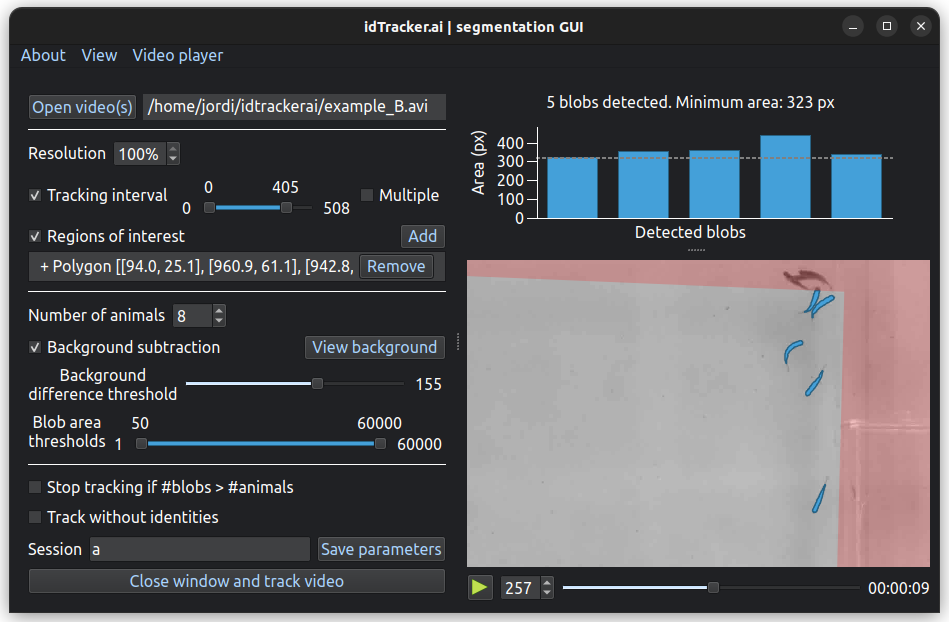
idtracker.ai’s segmentation app (in dark mode)#

idtracker.ai’s segmentation app (in light mode)#
The left panel holds the parameter controls. The right panel shows the video player, with a bar plot above it. Detected blobs are drawn as blue polygons in the video player, and their areas are shown in the bar plot.
Before you start tracking, check that:
every animal in the frame is detected as a blob, and
every blob is an animal (no reflections or other objects).
Move through the video to check this in several frames. Once the segmentation is right, idtracker.ai does the rest.
Segmentation tools#
This section describes each control of the app.
Tip
Hover over any control to see a tooltip explaining it.
Open…#
Click Open… to load a video or a TOML parameter file. You can also drag and drop files onto the app.
If you select several videos, they are tracked as one continuous video, as if they were concatenated. Use this for an experiment recorded in several clips. The video paths are listed next to the button; drag them to change their order. Click a path to jump to the first frame of that video (useful to check the continuity between clips).
Tracking interval#
Optionally, restrict tracking to one or more intervals of frames. Frames outside every interval are not tracked, and their trajectory values will be NaN.
Regions of interest#
A ROI limits where idtracker.ai looks for animals. Draw polygons or ellipses on the video player as either positive regions (look for blobs here) or negative regions (never look for blobs here). Negative regions are shown in red.
To add a region of interest:
Check Regions of interest to enable the tool.
Click Add.
Choose the shape (Polygon or Ellipse) and the type (Positive or Negative).
Click on the video player to place the vertices: left click adds a point, right click removes one.
Press Enter (or click Add again) to finish.
To remove a region, select it in the list and click Remove. Drag regions in the list to reorder them.
Warning
If the tool is enabled but no region has been drawn, the whole frame is treated as a negative region and no blobs are detected. Add at least one positive region.
Exclusive Regions of Interest#
Use this option for videos with several separate arenas, where animals cannot move from one to another. When it is enabled, each identity is bound to a single region during the first identity assignment, and detections of that identity outside its region are rejected.
This option requires two or more separate Regions of interest. In TOML files it is the exclusive_rois parameter (see Terminal usage).
Number of animals#
The number of animals in the video.
You can leave it at 0 (undefined) when using Track without identities. Even then, setting it is recommended, because it helps idtracker.ai tell single animals apart from crossings (blobs where several animals touch).
Background subtraction and intensity thresholds#
idtracker.ai can segment the video with or without subtracting the background:
Without background subtraction, a blob is any group of pixels whose brightness lies between the two intensity thresholds, from 0 (black) to 255 (white). For dark animals on a bright background, set the lower threshold to the minimum. For bright animals on a dark background, set the upper threshold to the maximum.
With background subtraction, a blob is any group of pixels whose brightness differs from the background by more than the Background difference threshold. This removes static objects that look like the animals.
The background is computed from the selected videos and tracking intervals, so changing either of them resets the background. Re-enable background subtraction afterwards. See Background subtraction for how the background is computed and how to load your own.
Area thresholds#
The minimum and maximum blob area, in pixels. Blobs outside this range are discarded and not tracked.
Stop tracking if #blobs > #animals#
A frame with more blobs than animals means that something other than an animal has been detected. These extra blobs (noise) contaminate the tracking algorithms and make identification harder. Check this option to make idtracker.ai stop the session, during tracking, as soon as it finds such a frame. This makes sure that you only get results from a clean segmentation.
In TOML files this is the check_segmentation parameter.
Track without identities#
Check this to get positions without consistent identities. The identification step is skipped, so the label of each animal can change over time, especially after crossings or occlusions. Use this when you only need positions, not individual identities. It is much faster, and it does not need a GPU.
Session name#
The name of the tracking session. All the results are saved in a folder called session_[SESSION NAME], next to the video (or in output_dir, if set; see Output). If left empty, the name is built from the video file names. See Output structure for the contents of this folder.
Save parameters#
Saves the current parameters to a TOML file. Load this file later to reopen the app with the same settings, or to track from the terminal without the app (see Terminal usage).
Close window and track video#
Closes the app and starts tracking with the current parameters. Progress is shown in the terminal. This is the same as saving the parameters to a file and running idtrackerai --load parameters.toml --track.
Segmentation shortcuts#
Key |
Action |
|---|---|
Q |
Quit the app |
Ctrl + O |
Open video(s) or TOML file |
Ctrl + S |
Save parameters |
Space |
Play/pause video player |
1 - 9 |
Change the video playback speed |
Ctrl + L |
Toggle playback framerate limit |
Right / D |
Move video playback forward |
Left / A |
Move video playback backward |
Enter |
Accept ROI when drawing |
Ctrl + + |
Increase font size |
Ctrl + - |
Decrease font size |